If you’re managing a SharePoint Farm and want to ensure it can handle the load your organization throws at it, performing a load test is essential. This guide will walk you through the process using Visual Studio, making it accessible even for beginners.
What is Load Testing?
Load testing is a process where you simulate multiple users accessing your application simultaneously to see how it performs under stress. For a SharePoint Farm, this helps identify bottlenecks, ensures stability, and provides insights into performance improvements.
Why Load Test Your SharePoint Farm?
- Identify Performance Issues: Understand how your system behaves under peak load conditions.
- Ensure Reliability: Verify that your SharePoint environment can handle the expected number of users.
- Optimize Performance: Make informed decisions on where to improve your infrastructure.
Prerequisites
You need Visual Studio 2012 Ultimate with Update 1. If you have Update 3, that’s fine too. Here’s how you can get started:
Setting Up the Load Test Project
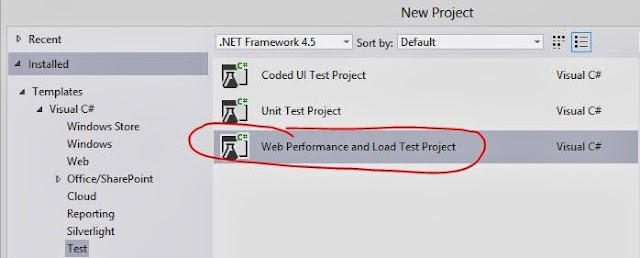
- Open Visual Studio:
- Go to
Test in the menu.
- Select
Web Performance and Load Test Project.
Enabling Third-Party Browser Extensions
If third-party browser extensions are blocked, you’ll need to enable them:
- Go to
Advanced Settings in your browser.
- If the option is grayed out, modify the setting in the registry. Be aware that this may need to be re-enabled after every
gpupdate or reboot.
Recording Your Test
- Start Recording:
- Click on
Record in Visual Studio.
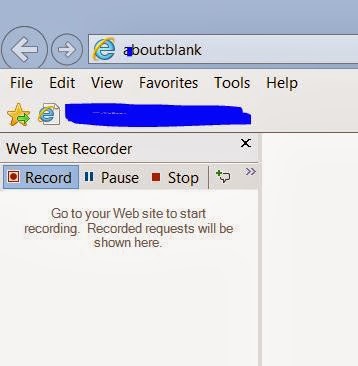
- This will open your browser with a recording snap-in on the side.

Troubleshooting Recording Issues
If you’re using Windows 8.1 and the recording snap-in doesn’t appear:
- Open Internet Explorer.
- Go to
Tools > Manage Add-ons.
- Disable and re-enable
Web Test Recorder 10.0.

Once enabled, the recorder should appear on the left side of your browser.
Simulating User Actions
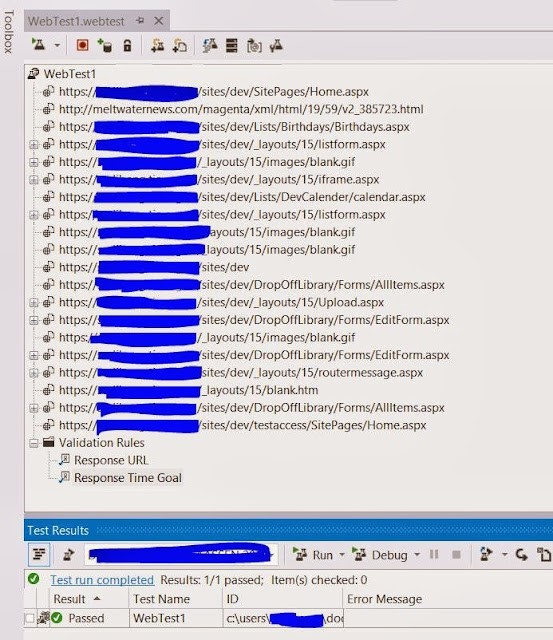
- Navigate through your SharePoint site as you normally would.
- Perform the actions you want to test (e.g., uploading files, navigating pages).
- Note: Be mindful of how the system handles file uploads and duplicate file names.
Stopping the Recording
- Stop Recording:
- Click
Stop Recording in Visual Studio. If you encounter an error, close your browser and manually stop the recording in Visual Studio.
Adding a Load Test
- Add Load Test:
- Right-click on your C# project in Visual Studio.
- Select
Add > Load Test.
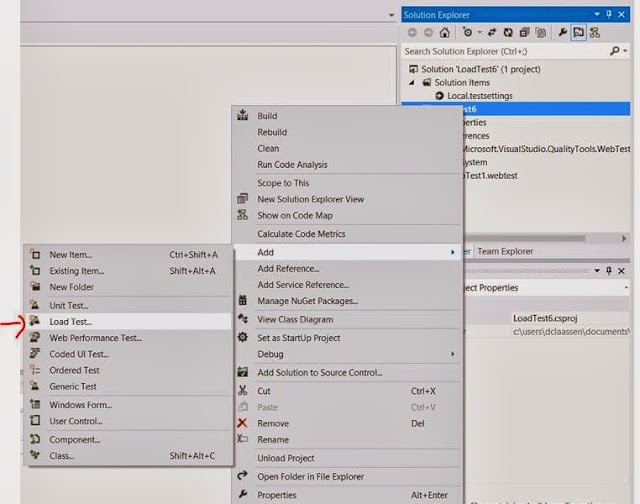
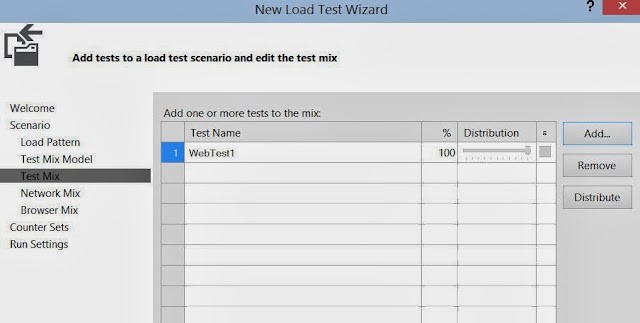
- Complete the wizard to load your recorded test under
Test Mix.
Running Your Load Test
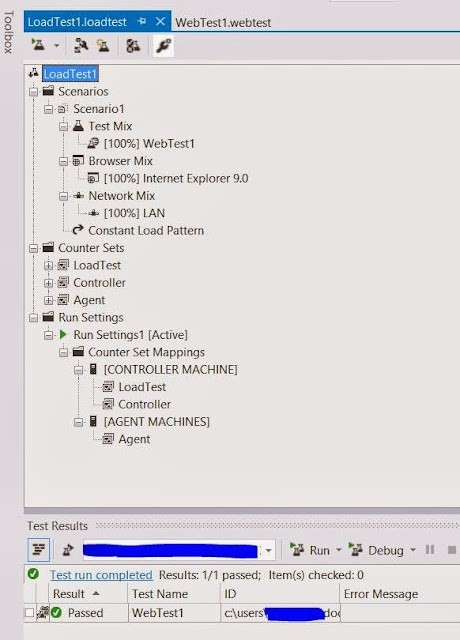
- Run the Test:
- Right-click on the project and select
Run Load Test.
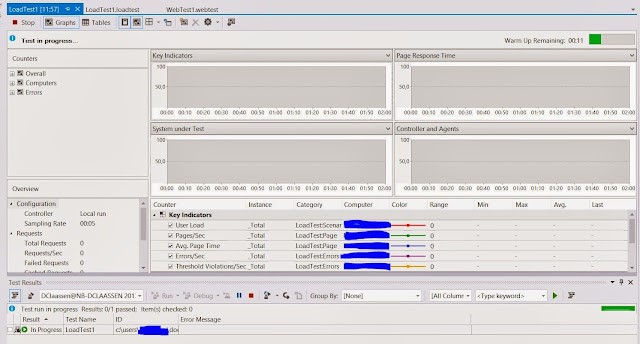
While it is running:
Additional Resources
For more in-depth tutorials, check out these handy links:
By following these steps, you can effectively load test your SharePoint Farm, ensuring it’s ready to handle whatever load comes its way. Happy testing!
WE’D LOVE TO CHAT ABOUT HOW WE CAN HELP!